
Prerequisites
Tor Browser
Required. Download from torproject.org only. Verify the PGP signature on the installer before running it.
PGP software
Required. GnuPG via command line, or Kleopatra as a GUI. You need a PGP key pair before registering on Torzon.
Monero wallet
Required. Feather Wallet (desktop) or Cake Wallet (mobile). Self-custody only — no exchange wallets. XMR costs 0.5% on Torzon vs 2% for BTC.
~45 minutes
First-time setup. PGP key generation and wallet sync account for most of that time — both happen once. Subsequent logins take under 2 minutes.
"A phishing clone of Torzon looks identical to the real site. The only visible difference is a 56-character .onion address where one wrong character routes you to a scam. Everything you configure here is designed to prevent that outcome." Torzon Portal · Security Brief, April 2026
Environment setup
-
1
Tor Browser installation and configuration
Go to torproject.org/download. Download the installer for your platform. Do not use a torrent or unofficial mirror — the PGP signature on the installer is the only guarantee of authenticity.
Verify the signature. The Tor Project publishes signing key fingerprints on their site. Import the key, then run:
gpg --verify tor-browser-linux-13.5.tar.xz.asc tor-browser-linux-13.5.tar.xzLook for
Good signature from "Tor Browser Developers". A bad signature means the download was tampered with. After installing, click the shield icon and set the security level to Safest. Torzon is designed to work at this level — JavaScript is disabled, but the market interface still loads.Bridge mode: If Tor connections are blocked in your region, click "Configure Connection" during startup and select obfs4 or Snowflake. Both bypass deep-packet inspection on corporate and university networks.
-
2
PGP software setup
GnuPG is the open-source standard. Confirm it's installed, then generate your key pair:
gpg --version          # confirm installed

gpg --full-generate-key  # follow the prompts:
                          # type: RSA and RSA (option 1)
                          # size: 4096 bits
                          # expiry: 2y (2 years, sensible)
                          # passphrase: unique, stored in KeePassXC
Export your public key. You will paste it into Torzon's account settings during registration:
gpg --armor --export YOUR_KEY_ID > torzon_public_key.ascBack up your private key to offline storage immediately. This key is your Torzon identity — losing it means losing account access permanently if PGP is your only 2FA method. Export it to an encrypted USB drive or print it as a QR code stored physically. Cloud backup of private keys is not recommended.
GUI option: Kleopatra (Windows/Linux) and GPG Suite (macOS) wrap GnuPG in a point-and-click interface. Same key strength, lower typing requirement. -
3
Monero wallet setup
Torzon accepts both XMR and BTC. Monero is the better choice for privacy: ring signatures, stealth addresses, and RingCT make amounts and participants opaque on-chain. The fee is also lower — 0.5% vs 2% for Bitcoin.
Download Feather Wallet for desktop or Cake Wallet for mobile. Both are open source and support Tor routing during wallet sync. Self-custody means the recovery seed is yours — write it on paper, store it offline, never photograph it. Why not an exchange wallet? When you pay a Torzon escrow address from an exchange, the exchange can see the destination. That removes the separation between your exchange identity and platform activity.
Built-in atomic swaps: Torzon includes an in-platform XMR/BTC atomic swap. If you hold only Bitcoin, the platform converts it to Monero before the transaction — no separate swap service required.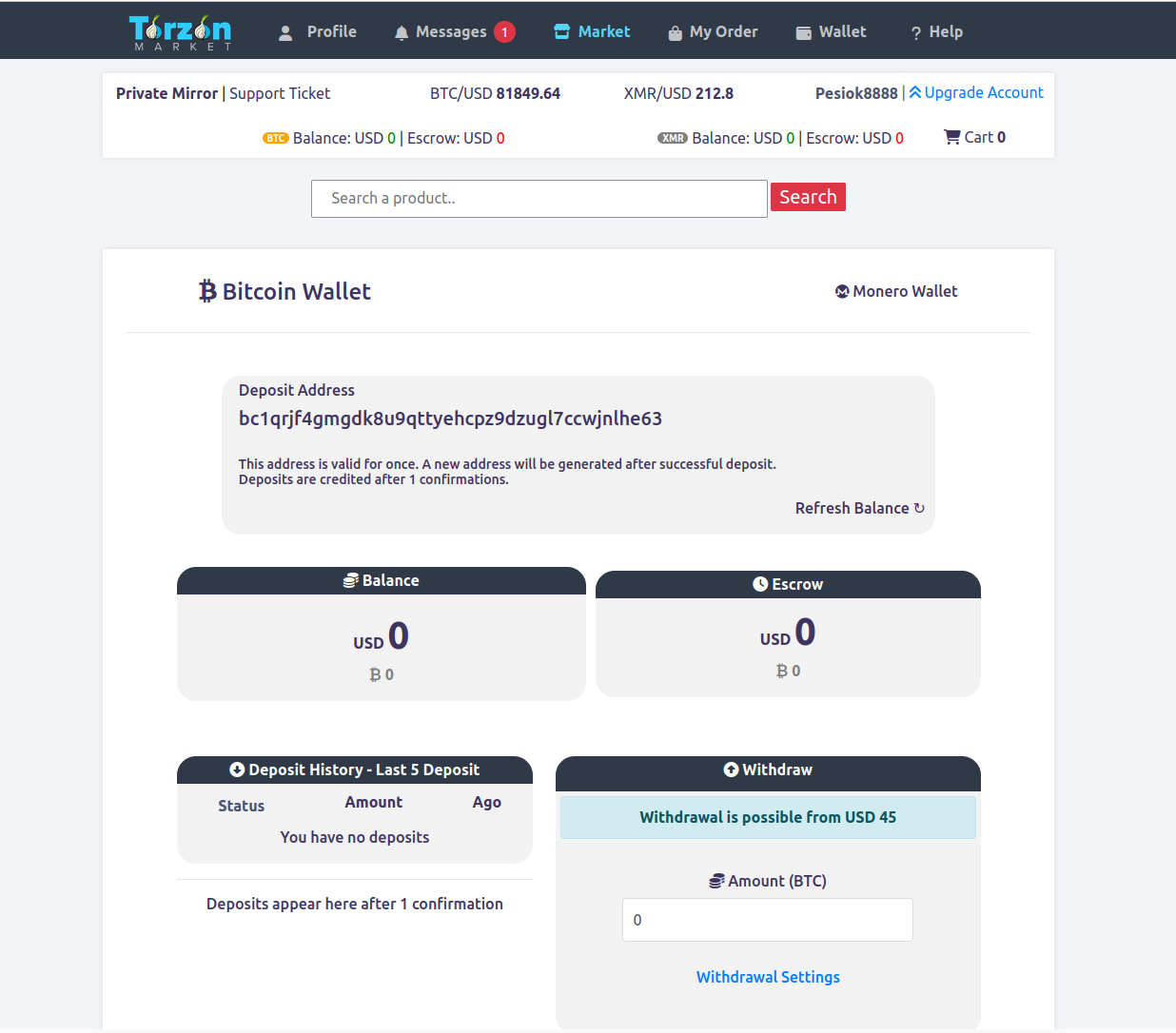
-
4
Optional hardening: Tails OS
Tails is a live operating system that boots from USB, routes all network traffic through Tor at the OS level, and writes nothing to the host computer's disk. When you shut it down, the session is gone. No browser history, no wallet files, no logs — clean state every time.
When to use it: shared computers, environments that may be monitored, or high-frequency sessions that would otherwise accumulate a pattern on your main OS. Whonix is an alternative for persistent use — two virtual machines where the Workstation VM routes all traffic through the Gateway VM running Tor. Qubes OS takes this further with hardware-level compartmentalization.
Accessing Torzon market
-
1
Copying and verifying the link
Return to the homepage of this portal and copy the primary Torzon link using the Copy button. Do not type the address manually — the .onion address is 56 characters and a single transposed character loads a phishing clone that looks identical to the real site. Works. That's it.
How to verify independently: Torzon publishes PGP-signed announcements on Dread whenever mirrors rotate. The signature uses Torzon's operator key. Decrypt the announcement yourself and compare addresses character by character. This portal sources every link from those announcements — last reconciled April 21, 2026.
Anti-phishing code: After your first login, Torzon shows a personal anti-phishing code in every page header. If you ever load the site and the code is absent or wrong, stop immediately — you are on a phishing clone.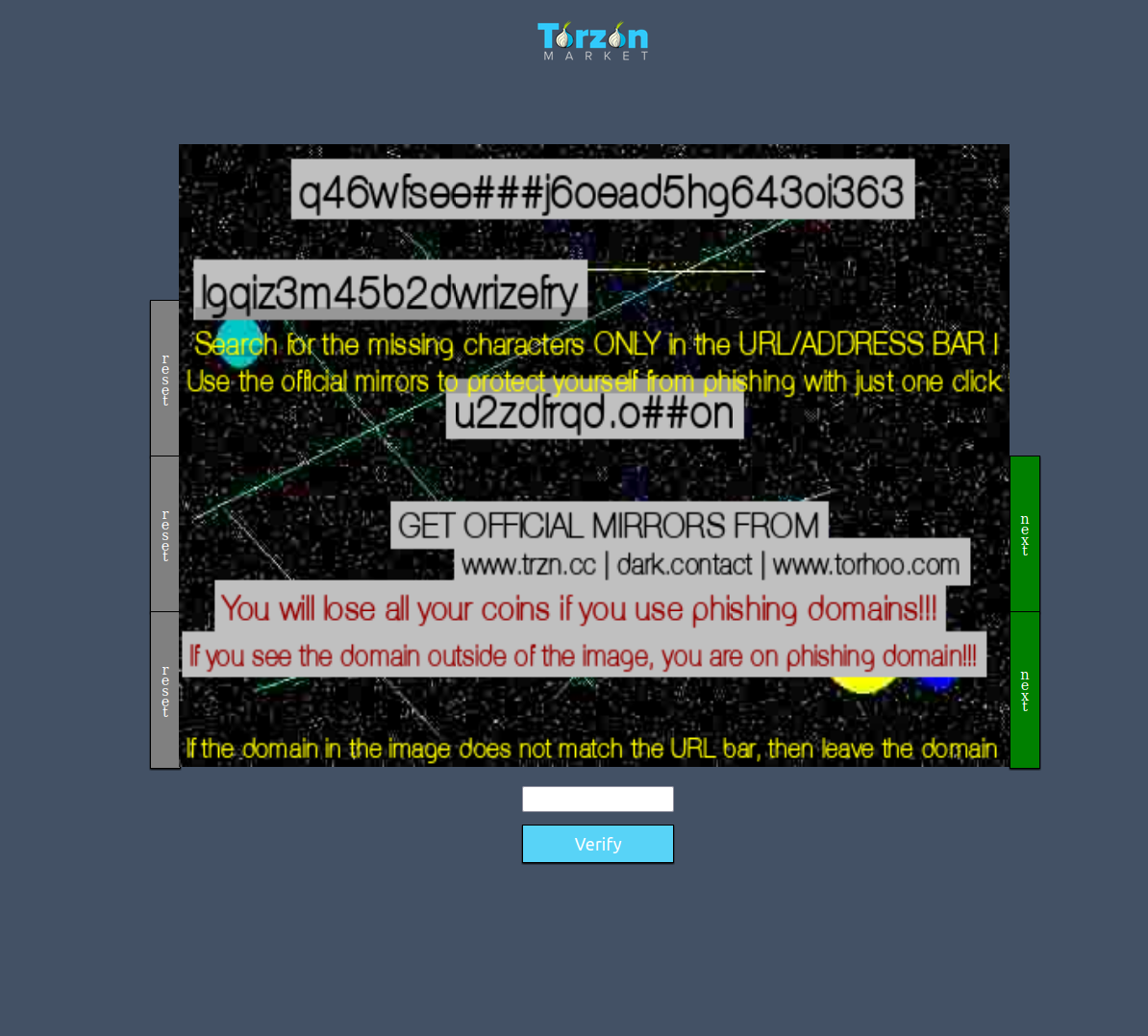
-
2
First load: what to expect
Paste the .onion address into Tor Browser's address bar. The initial connection takes 10 to 30 seconds — Tor builds a 3-hop circuit through the network before the request reaches Torzon's server. Slow first load is normal. If the connection times out, try a mirror address from the URLs page.
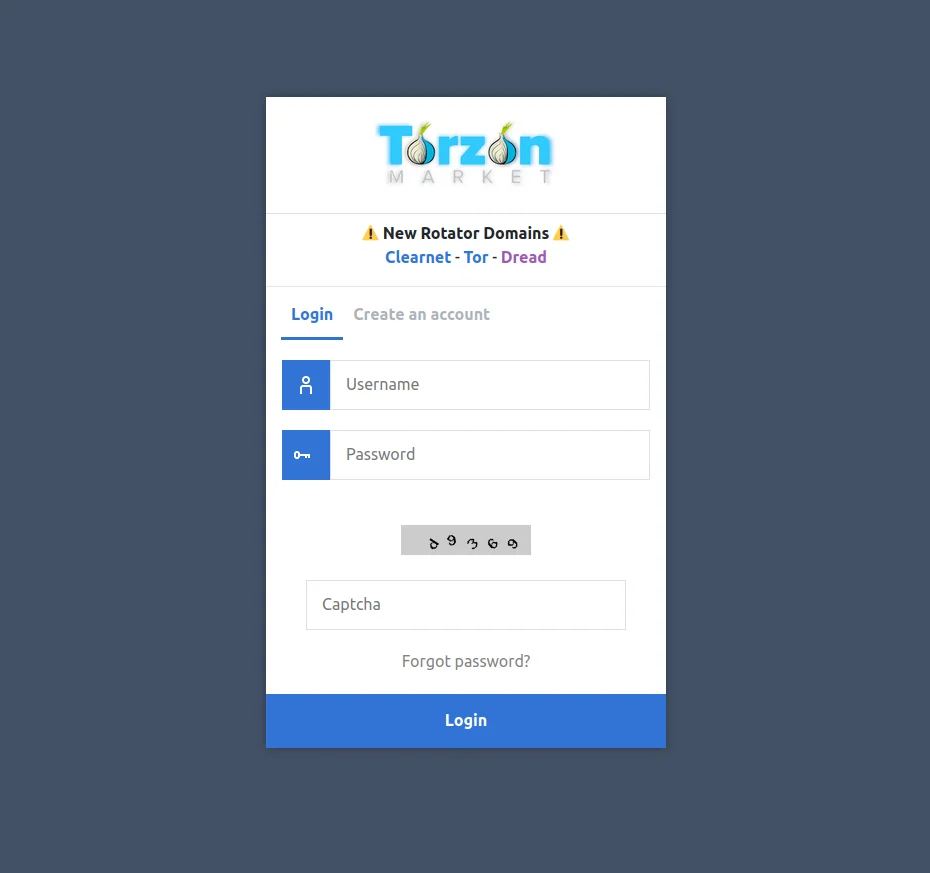
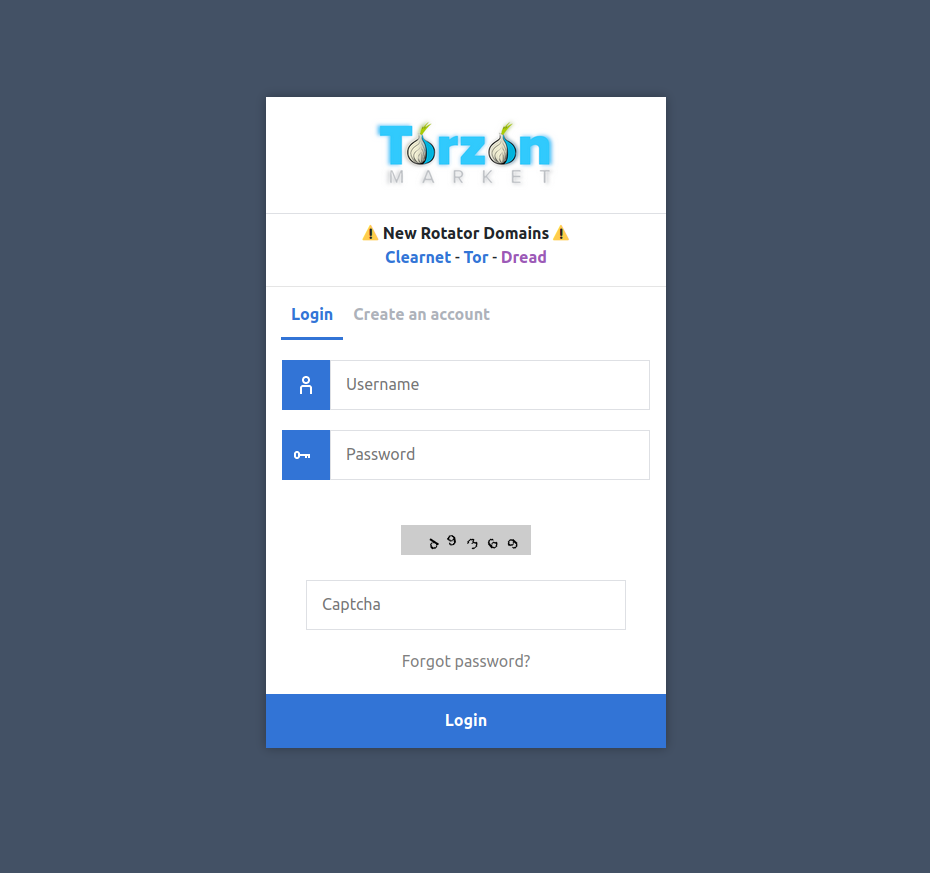
On a successful connection you will see the Torzon login page. Confirm three things: the .onion address in the address bar matches exactly what you copied, the page loads without major errors at Safest, and the visual design matches the screenshots in this guide. Any mismatch suggests a phishing page — close immediately.
-
3
Account registration
Click "Register" from the login page. Torzon requires a username, password, and CAPTCHA. Use a username with no connection to any other account you own — not your forum handle, not a variation of your email. Generate a unique password with KeePassXC. Do not reuse a password from any other service.
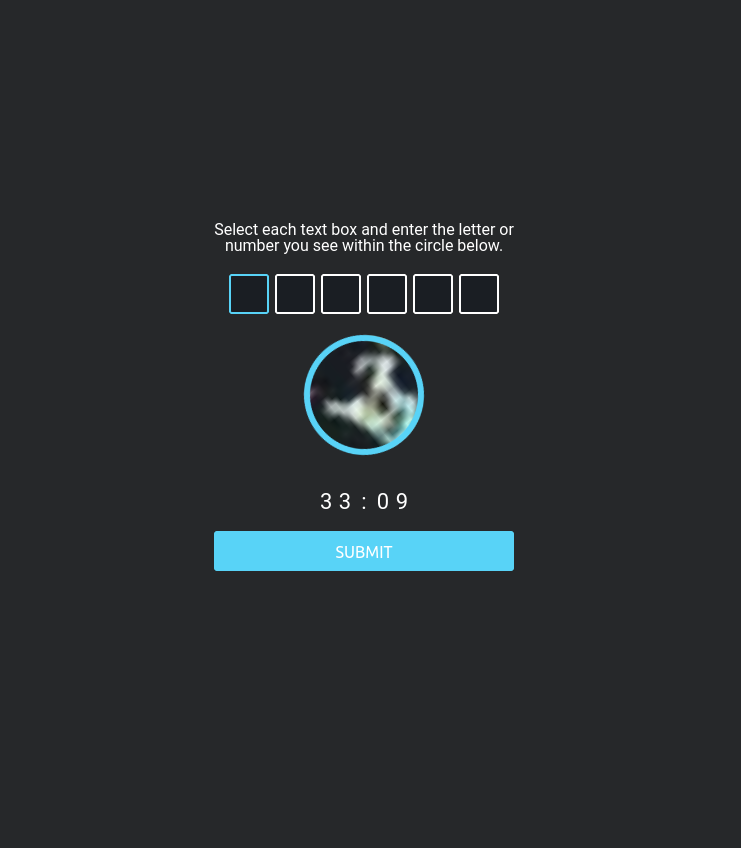
The CAPTCHA uses JavaScript. If you are at Safest, temporarily lower to Standard, solve it, then return to Safest. After registration, Torzon generates your personal anti-phishing code. Screenshot it and keep it accessible — you will use it to verify every future login session.
-
4
PGP key upload and verification
Navigate to Account Settings → PGP Key. Paste your public key — the full text content of the
.ascfile you exported. Torzon encrypts a random challenge string with your key. Decrypt it on your machine:gpg --decrypt challenge.ascCopy the decrypted plaintext back into the verification field. This proves you hold the private key corresponding to the public key you submitted. Once verified, the key is linked to your account and enables PGP-based 2FA and encrypted messaging.
Why this matters: PGP login is your recovery fallback if your TOTP device is ever lost. A phishing site cannot generate a validly-signed challenge with Torzon's server key — so PGP 2FA is effectively immune to real-time phishing attacks.
Security hardening
"Enable PGP 2FA even if you already have TOTP. TOTP is convenient but the decryption step happens server-side — a relay attack can reuse your code in real time. PGP decryption happens on your machine. Nothing submitted can be replayed." Torzon Portal · OPSEC Notes, 2026
Common issues and fixes
| Issue | Likely cause | Solution |
|---|---|---|
| Site won't load at all | Tor Browser not connected | Check the connection indicator. If it shows "Not Connected", click Connect and wait up to 60 seconds for circuit establishment. |
| Connection timeout | Primary mirror under load | Click "New Circuit for This Site" in the toolbar, or switch to a different Torzon mirror address from the URLs page. |
| Blank white page | JavaScript required for this element | Temporarily lower security to Standard. Solve the captcha, then return to Safest. Most pages work at Safest level. |
| Layout looks wrong or unfamiliar | Possible phishing clone | Close Tor Browser immediately. Return to this portal, copy the link again from the verified source. Never proceed if layout does not match screenshots in this guide. |
| TOTP code rejected | System clock out of sync (>30s drift) | Enable automatic time sync: timedatectl set-ntp true (Linux) or automatic time in system settings (Windows/macOS). |
| PGP decryption fails | Wrong key selected in PGP software | Run gpg --list-secret-keys to confirm your Torzon key is present. Check that the key ID matches what is registered in your account settings. |
| Account temporarily locked | Too many failed login attempts | Wait 30 minutes, then use PGP login from the login page. PGP authentication bypasses the lockout timer and the TOTP requirement. |
| Image captcha not loading | JavaScript or media blocked at Safest | Lower security to Standard for the captcha page only. Return to Safest immediately after solving. On Tails, the default Tor Browser level handles this without changes. |